X Live Within-Subject Study
Task Description
In this study, you will evaluate the same assigned X post twice. The second evaluation will use a different display condition from the first, so please review the post carefully each time before rating. After you complete the required rating tasks and final questions, the study will end.
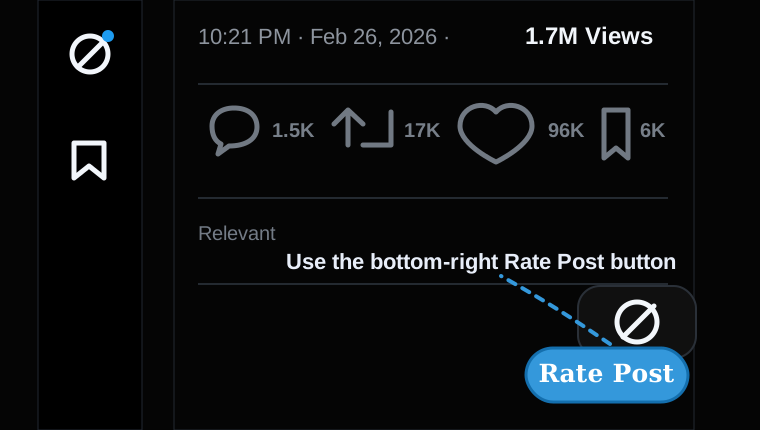
If you do not see a rating card below the post, use the blue Rate Post button in the bottom-right corner.
Please ensure the study extension is installed before starting. The extension is required to complete the study and receive the completion code and redirection url.
Chrome (Supported)
1. Open chrome://extensions and turn on Developer mode.

2. Click Load unpacked, select folder x-community-note-extension, then click Select.

3. Confirm X Perspective Rating appears and is enabled.

Edge (Supported)
- Download and unpack
x-extension-within-v1.0.3.zip. - Open
edge://extensions. - Enable
Developer mode. - Click
Load unpackedand choose the unpacked extension folder.
Firefox (Supported, temporary local install)
- Download and unpack
x-extension-within-v1.0.3.zip. - Open
about:debugging#/runtime/this-firefox. - Click
Load Temporary Add-on. - Select
manifest.jsonin the unpacked folder.
Note: temporary add-on usually requires reloading after Firefox restart.
Safari (Temporary Local Install)
Follow these exact steps in Safari:
1. Confirm the extension folder is downloaded and unzipped.

2. Open Safari menu → Settings.

3. Go to Advanced and enable “Show features for web developers”.

4. Open Developer tab and enable “Allow unsigned extensions”.

5. Click “Add Temporary Extension...” and select the extension folder.

6. Verify “X Perspective Rating” appears in Extensions and is enabled.

7. On first use, allow website access when prompted.

If images are missing, place the tutorial screenshots in x-live-prolific-study/static/tutorial/safari/ with the filenames shown above.
Start Experiment
Log in to x.com, then open the assigned post.
Please follow the prompts on X until the study is complete.